
First understand how EYY works
EYY is a universal copy and paste efficiency tool. It quickly puts pre-saved text, pictures or files into the currently used chat window, and the operations it can complete are the same as manual copy and paste.
Enter phrase
When you select "Enter" or double-click the phrase, the software performs a paste operation to the currently active window.
send phrase
When clicking the send button, paste the content first and then press Enter; the chat tool must set Enter to send.
The software determines whether to move and attach EYY to the side of the chat window by identifying the name of the currently active window.
Download and install Windows version
Confirm before installation
- Minimum system: Windows 7 Service Pack 1 or Windows Server 2008 R2.
- Recommended systems: Windows 8, Windows 10 or Windows 11.
- If the installation prompts that the system version is too low, please upgrade the system or switch to a NET4 compatible version; you may need to restart the computer after installing the compatible version.
Starting with Windows 8, you can get a more complete experience such as touch screen operation, list hotspot swiping and mouse-over wheel.
Meet the My Phrases workspace
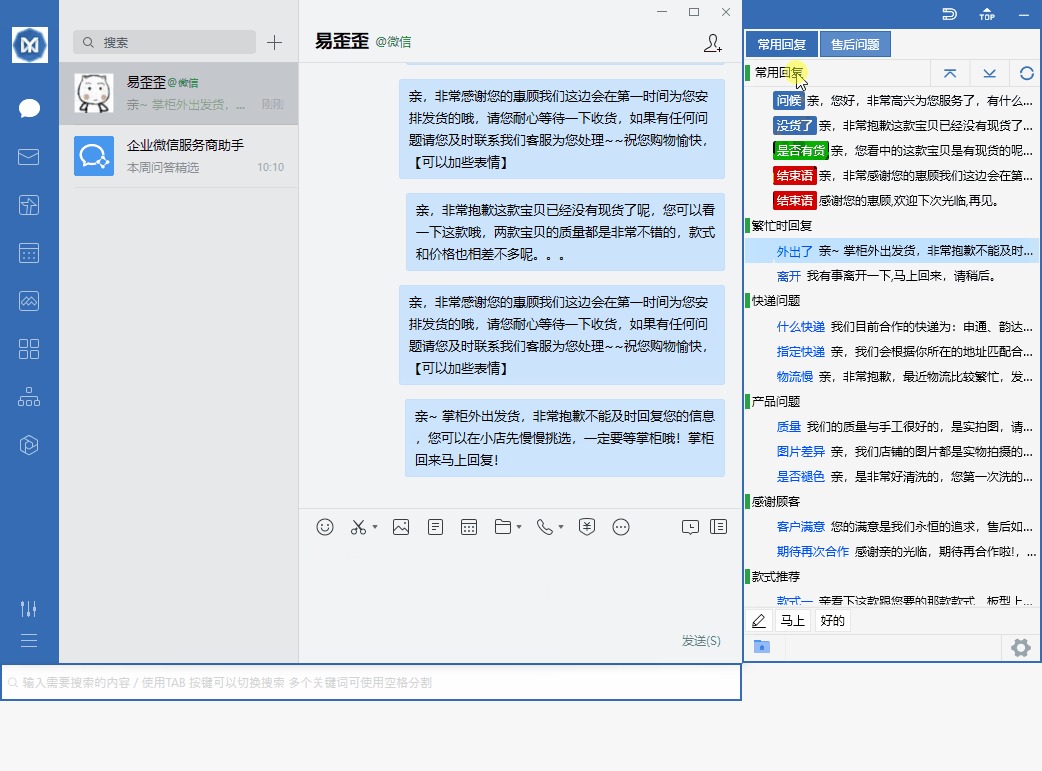
The core interface of the PC version consists of a classification area, phrase content area, search bar and bottom shortcut tabs. First select the business category on the left, and then enter or send the corresponding words from the content area.
Manage phrase categories
- 1
Open category menu
Right-click the mouse in the category area to open the context menu to add, modify, delete or move categories.
- 2
Multiple selection one by one
Press and hold Ctrl, and then use the left mouse button to select the categories to be processed in sequence.
- 3
Continuous interval selection
First select the starting point and hold down Shift Then select the end point and select the entire category between the two.
- 4
Perform batch operations
After completing the selection, right-click to perform batch processing such as moving and deleting through the menu.
Manage phrase content
Right-click the mouse in the phrase content area to create, insert, edit, delete, move and perform other content operations.
Select item by item
Press and hold Ctrl And click one by one, suitable for selecting scattered content.
block selection
Press and hold Shift Select the starting point and end point, suitable for processing continuous content at one time.
Add or insert a phrase
- 1
Open new menu
Right-click the phrase content area and select "New Phrase" or "Insert Phrase".
- 2
Fill in the title
The title is only used for list display and quick identification and does not replace the actual content sent.
- 3
Fill in the content and save
The text that needs to be sent to the customer should be written in the content area and saved after confirmation.
Type, send and batch send phrases
Double click phrase: enter
Double-clicking the phrase will paste the content into the current chat input box, but it will not be automatically sent.
Click on the arrow: Send
Clicking the send arrow next to the phrase will paste the content and press Enter automatically.
Right-click menu: Send in batches
First select multiple phrases, and then press the selection results through the right-click menu to execute batch sending.
The chat input box should be in a typing state, and confirm that the current chat tool uses Enter to send messages.
Use phrase bookmarks to organize long lists
When there is a lot of content in a category, you can use bookmarks to segment the content and quickly jump to frequently used locations.
- 1
Create bookmark
Right-click the content area, select "Bookmarks", and then add or insert a bookmark.
- 2
Open bookmark preview
Click the first bookmark, or double-click another bookmark to open a bookmark preview.
- 3
Jump content location
Select the target bookmark from the preview list, and the content area will automatically move to the corresponding position.
Set a quick send label
The shortcut tags at the bottom of the software are suitable for saving extremely high-frequency short sentences such as "Hello", "Please wait", "Processing immediately". Clicking on a label will send the content directly.
Right-click the mouse in the shortcut tag area to open the menu, and you can manage the tag content and order.
Create local file categories
Right-click the category area of the local file and select "Add". You can also use the add icon in the area to create a category. Categories also support Ctrl Multiple selection one by one with Shift Interval selection.
Add and send local files
- 1
Open file menu
Right-click in the file list area to add, modify and other file operations.
- 2
Select one or more files
After clicking "Add Files", select one or more files at a time in the system file selection window.
- 3
Enter or send
Select content from the file list and then input or send it; if necessary, you can select multiple items first and then use batch operations.
Quickly search and send using your keyboard
The search bar allows you to search for phrases by keyword, and you can also select, input and send without using the mouse.
What should I do if I encounter problems during use?
Where does the content get pasted when a phrase is double clicked?
The content is pasted into the input position of the currently active window. Please click on the target chat input box before sending to ensure the focus is correct.
Didn't it automatically send after clicking the send arrow?
Please check whether the chat tool sets the carriage return to send, and confirm that the input box is editable; some software may not accept carriage return to send.
How to select multiple pieces of content at once?
Hold down Ctrl to select multiple items one by one, and hold down Shift to select continuous intervals; use the right-click menu to perform batch operations after selection.
Why is Windows 8 or higher recommended?
Windows 8, 10, and 11 can get more complete system interaction support such as touch screen, hotspot sliding, and list wheel.
No relevant chapters found
Try changing a keyword, or contact customer service for help.